# PixelCrushers Dialogue System Integration
### Overview
**The integration can be found in Assets/Plugins/CrystalLipSync/Integration Packages/**
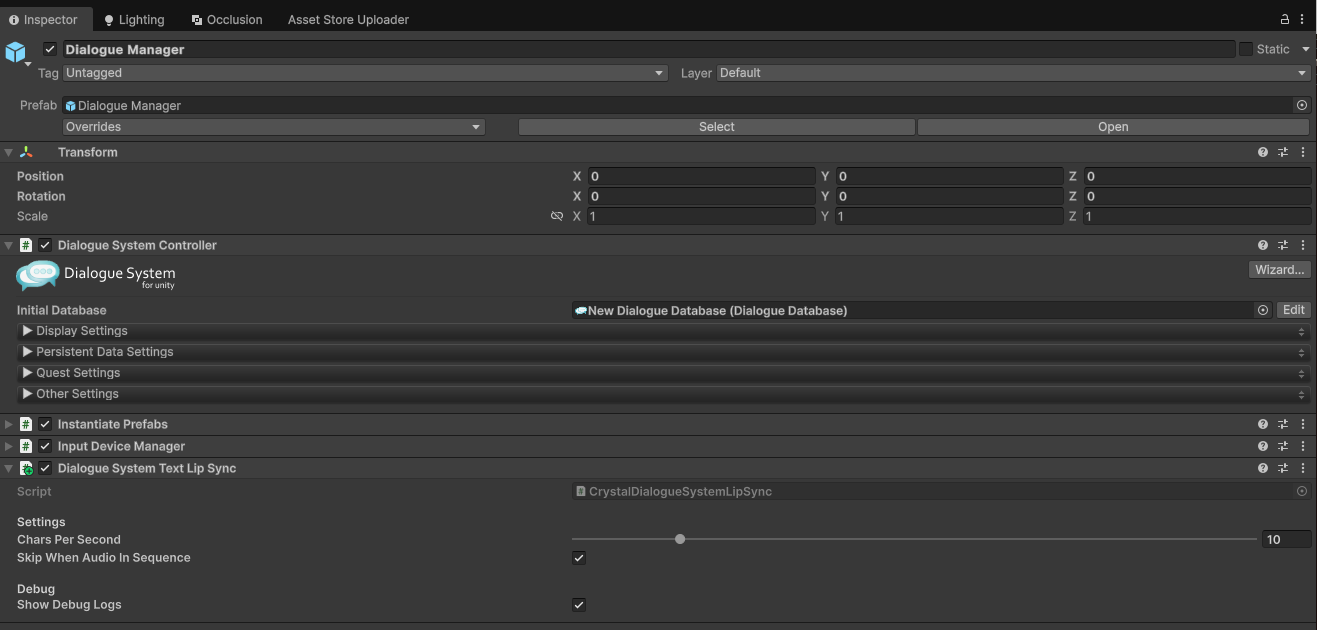
The **CrystalDialogueSystemLipSync** component (in the Inspector shown as **Dialogue System Text Lip Sync**) bridges [PixelCrushers Dialogue System](https://www.pixelcrushers.com/dialogue-system/) with CrystalLipSync's text-driven lip sync. When a dialogue line is delivered, it automatically:
1. Reads the subtitle text
2. Resolves which character is speaking
3. Finds their `CrystalTextLipSync` component
4. Drives mouth movement at a configurable speed
If the line has voice-over audio (via `AudioWait`, `Audio`, or `Voice` sequencer commands), text lip sync is skipped so the audio-driven `CrystalLipSyncController` handles it instead.
{% hint style="info" %}
This integration requires **no scripting**. Setup takes under a minute.
{% endhint %}
***
### Prerequisites
Before setting up the integration, make sure you have:
* **CrystalLipSync** installed and working on your character(s)
* **PixelCrushers Dialogue System** installed
* Your characters set up with:
* `CrystalLipSyncController`
* `CrystalLipSyncBlendshapeTarget` (with mapped visemes)
* `CrystalTextLipSync`
{% hint style="warning" %}
Each speaking character needs a **CrystalTextLipSync** component. If you used the CrystalLipSync Setup Wizard with the "Add Text Lip Sync" option enabled, this is already done.
{% endhint %}
***
### Setup
#### Step 1 - Add the component to the Dialogue Manager
1. Select your **Dialogue Manager** GameObject in the scene hierarchy
2. Click **Add Component**
3. Search for `CrystalDialogueSystemLipSync` (or navigate to **CrystalLipSync → Dialogue System Text Lip Sync**)
4. Done!
{% hint style="success" %}
That's the entire setup. The component hooks into the Dialogue System's built-in `OnConversationLine` / `OnConversationLineEnd` callbacks, which are broadcast to the Dialogue Manager automatically.
{% endhint %}
#### Step 2 - Configure settings (optional)
| Setting | Default | Description |
| ------------------------------- | ------- | --------------------------------------------------------------------------------------------------------------------------------------------------------------------------------------------------------------- |
| **Chars Per Second** | `10` | How fast the lip sync plays through the text. Match this to your subtitle display speed or typewriter effect. Higher = faster mouth movement. |
| **Skip When Audio In Sequence** | `true` | When enabled, text lip sync is skipped if the line's Sequence field contains `AudioWait(...)`, `Audio(...)`, or `Voice(...)` commands. This prevents text lip sync from conflicting with audio-driven lip sync. |
| **Show Debug Logs** | `false` | Prints detailed logs to the Console for troubleshooting. |
***
### How it works
```
Dialogue System delivers a line
│
▼
OnConversationLine(Subtitle) fires
│
▼
Read subtitle text ──► Empty? → skip
│
▼
Check Sequence for audio commands ──► Found? → skip (audio lip sync handles it)
│
▼
Resolve speaker from subtitle.speakerInfo.transform
│
▼
Find CrystalTextLipSync on speaker ──► Not found? → skip
│
▼
PlayText(text, charsPerSecond)
│
▼
OnConversationLineEnd(Subtitle) fires → Stop()
```
The component uses the Dialogue System's **SendMessage** pattern. When a conversation line is delivered, the system broadcasts `OnConversationLine` to the speaker, listener, and Dialogue Manager GameObjects. Since the component lives on the Dialogue Manager, it catches every line from every conversation.
***
### Audio vs Text Lip Sync
CrystalLipSync supports two lip sync modes:
| Mode | Driven by | Component | When to use |
| ------------------ | -------------------- | -------------------------- | ------------------------------ |
| **Audio lip sync** | Voice-over AudioClip | `CrystalLipSyncController` | Lines with recorded voice-over |
| **Text lip sync** | Subtitle text string | `CrystalTextLipSync` | Lines without voice-over |
#### Audio lip sync (voice-over lines)
Audio lip sync **needs no integration component at all**. It works out of the box because both systems share the same `AudioSource`:
1. `CrystalLipSyncController` on the character references an **AudioSource** and performs real-time FFT analysis on whatever audio plays through it
2. The `DialogueActor` component on the same character also has an **Audio Source** field
3. **Point both to the same AudioSource**
When the Dialogue System plays a voice-over clip via `AudioWait(clip, speaker)`, it routes the audio through the `DialogueActor`'s AudioSource. Since `CrystalLipSyncController` monitors that same AudioSource, it detects the audio and drives lip sync automatically ... no callbacks, no events, no integration code.
**Setup for audio lip sync**
1. On your speaking character, ensure you have an **AudioSource** component
2. In `CrystalLipSyncController`, drag that AudioSource into the **Audio Source** field
3. In `DialogueActor`, drag the **same AudioSource** into the **Audio Source** field
4. In your Dialogue Entries, use `AudioWait(clip, speaker)` in the Sequence field
That's it. When the line plays, the Dialogue System plays the clip through the shared AudioSource, and CrystalLipSync picks it up instantly.
{% hint style="info" %}
If your character has only **one AudioSource**, the Dialogue System will find it automatically via `GetComponentInChildren()` even without setting the `DialogueActor.audioSource` field explicitly. The explicit assignment only matters if the character has **multiple** AudioSources.
{% endhint %}
#### Text lip sync (lines without voice-over)
This is where the `CrystalDialogueSystemLipSync` integration component comes in. For lines that have no audio clip, there's nothing for the FFT analyzer to pick up. The integration reads the subtitle text and feeds it to `CrystalTextLipSync` instead.
The integration handles the two modes automatically:
* **With `Skip When Audio In Sequence` enabled** (default): If the Dialogue Entry's Sequence field contains `AudioWait(...)`, `Audio(...)`, or `Voice(...)`, text lip sync is skipped. The audio analysis in `CrystalLipSyncController` handles lip sync from the audio signal.
* **With `Skip When Audio In Sequence` disabled**: Text lip sync plays for every line, even if audio is present. Use this only if your audio-driven lip sync is handled separately.
#### Example Sequences
```
// Voice-over line ... text lip sync will be SKIPPED (audio handles it)
AudioWait(VO/NPC_Bob/bob_line_001, speaker)
// No audio ... text lip sync will PLAY
Delay(3)
// Audio + animation ... text lip sync will be SKIPPED
Voice(VO/NPC_Bob/bob_line_001, Talk, Idle, speaker)
```
***
### Troubleshooting
#### No lip sync is happening
1. **Enable debug logs**: Check the **Show Debug Logs** toggle on the component and open the Console
2. **Check the component is on the Dialogue Manager**: It must be on the same GameObject as the `DialogueSystemController`
3. **Verify CrystalTextLipSync exists on the speaker**: The character's GameObject (or a child) needs a `CrystalTextLipSync` component
4. **Verify CrystalLipSyncController exists**: `CrystalTextLipSync` requires a `CrystalLipSyncController` on the same GameObject to apply viseme weights
5. **Check the Dialogue Actor is mapped**: In the Dialogue System, make sure the Actor's Transform is assigned (via a `DialogueActor` component on the character)
#### Lips move but no visible blendshape changes
* Ensure `CrystalLipSyncBlendshapeTarget` is present with correctly mapped visemes
* Check that `CrystalLipSyncController.IsActive` is `false` ... if audio lip sync is active, it overrides text weights
#### Text lip sync plays even for voice-over lines
* Enable **Skip When Audio In Sequence** in the inspector
* Verify your voice-over lines use `AudioWait(...)` or `Audio(...)` in the Sequence field
#### Lip sync speed doesn't match subtitle display
* Adjust the **Chars Per Second** value to match your subtitle typewriter speed
* Typical values: `8...15` for natural pacing, `20+` for fast dialogue
***
### FAQ
{% hint style="info" %}
**Q: Do I need to add anything to each character?**\
A: Each speaking character needs `CrystalLipSyncController`, `CrystalLipSyncBlendshapeTarget`, and `CrystalTextLipSync`. Use the **CrystalLipSync Setup Wizard** (Tools → Crystal LipSync → Setup Wizard) with "Add Text Lip Sync" enabled to set these up in one click.
{% endhint %}
{% hint style="info" %}
**Q: Can I use this alongside Game Creator 2?**\
A: Yes. The PixelCrushers integration and GC2 integration are independent. If you use the Dialogue System for GC2 bridge package, the Dialogue System integration handles lip sync for PixelCrushers conversations.
{% endhint %}
{% hint style="info" %}
**Q: Does this work with localized dialogue?**\
A: Yes. The component reads whatever text the Dialogue System delivers after localization. No extra configuration needed.
{% endhint %}
{% hint style="info" %}
**Q: What if my character doesn't have a CrystalTextLipSync component?**\
A: The line plays normally without lip sync. A debug log is printed if **Show Debug Logs** is enabled, but nothing breaks.
{% endhint %}