# Quickstart

<figure><img src="https://166712561-files.gitbook.io/~/files/v0/b/gitbook-x-prod.appspot.com/o/spaces%2Fp47l4hoFKIHGBwL1Cm4D%2Fuploads%2FOvFgA941F369R5AkzeeR%2Fimage.png?alt=media&#x26;token=0074d64d-2fbf-4ea2-805c-39181288ec75" alt=""><figcaption></figcaption></figure>

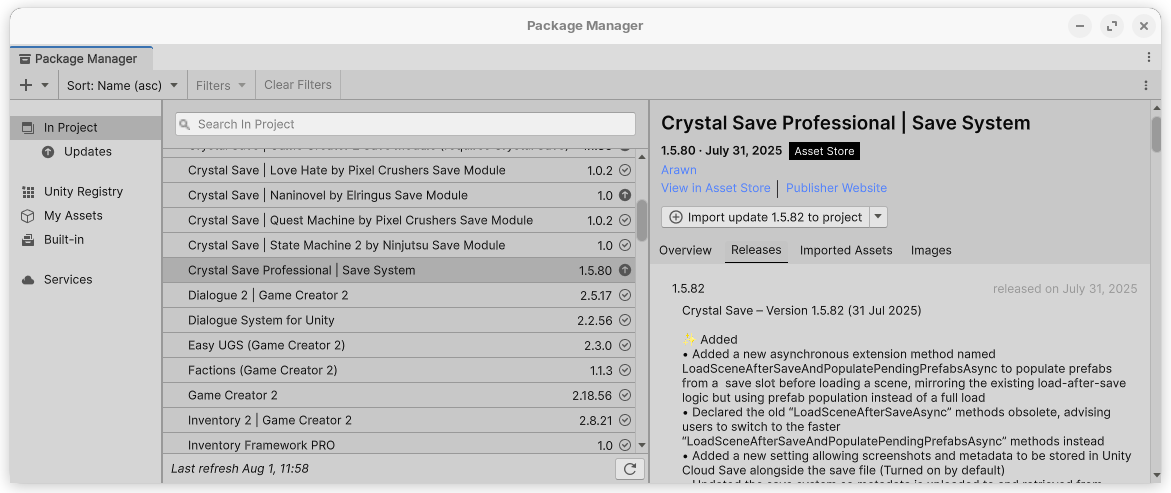
Import Crystal Save through the Unity Package Manager

{% hint style="info" %}
No Scene Preparation, Prefab Registrations required.

Crystal Save requires your confirmation to download the necessary dependencies. When prompted accept the request - if accidentally canceled - install the dependencies through the editor top menu: Tools/Crystal Save/Project/Install Dependencies &#x20;
{% endhint %}

### Create Crystal Save Settings (Settings Wizard)

Upon the first import of Crystal Save into your project, a **Settings Wizard** will open. The wizard guides you through the basic setup process. It will continue to appear each time you open your project until the Save Settings have been created. Alternatively, you can click the **Close & Setup Manually** button, which will automatically create Save Settings with default working values and the Wizard will stop showing up upon opening of your project.

<figure><img src="https://166712561-files.gitbook.io/~/files/v0/b/gitbook-x-prod.appspot.com/o/spaces%2Fp47l4hoFKIHGBwL1Cm4D%2Fuploads%2FAKPRPLgc9dWNF9ClI2DM%2Fimage.png?alt=media&#x26;token=b92c4d67-0799-46c2-b4e1-80d3d3f25048" alt=""><figcaption></figcaption></figure>

### **Demo Scenes**

**If you plan to use the Demo Scenes:** Install the Default Setting → Menu: T*ools/Crystal*\
*Save/Settings/Install Default Settings*

* Add the Demo Scenes to your Scene Manager

{% embed url="<https://youtu.be/RZGR3SGDmrA?si=X1UbRuiUU1BBWsxM>" %}

***

### Save Prefabs

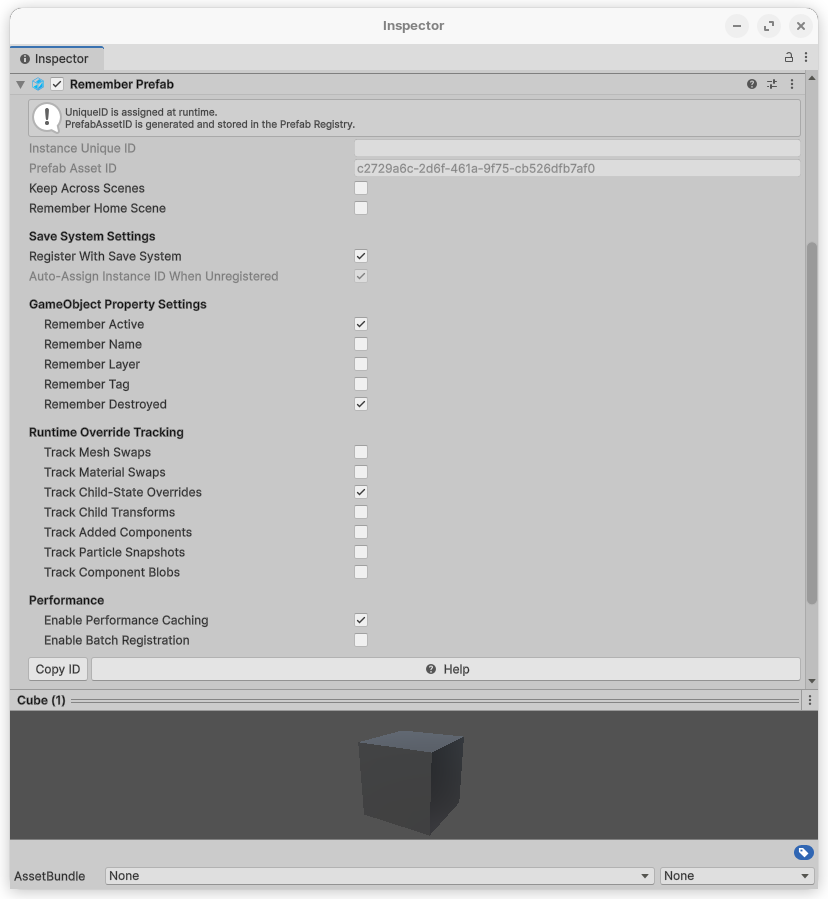
Save/Load Prefabs: Add the [**Remember Prefab**](https://arawn-software-publishing.gitbook.io/arawn/basics/remember-prefab-saveableprefab) component to your prefab. Done!\
Saving and Loading will now restore this Prefab. Easier than ever!

<figure><img src="https://166712561-files.gitbook.io/~/files/v0/b/gitbook-x-prod.appspot.com/o/spaces%2Fp47l4hoFKIHGBwL1Cm4D%2Fuploads%2FMiWZj5c0r1k1rrK0ohFq%2Fimage.png?alt=media&#x26;token=394eca7f-c396-4db9-9d57-985fcaacb5ea" alt=""><figcaption></figcaption></figure>

{% embed url="<https://youtu.be/FPWVZkiz4UA?si=L7en6QlK3XVc71DT>" %}

***

### Save Components (Scene Game Objects)

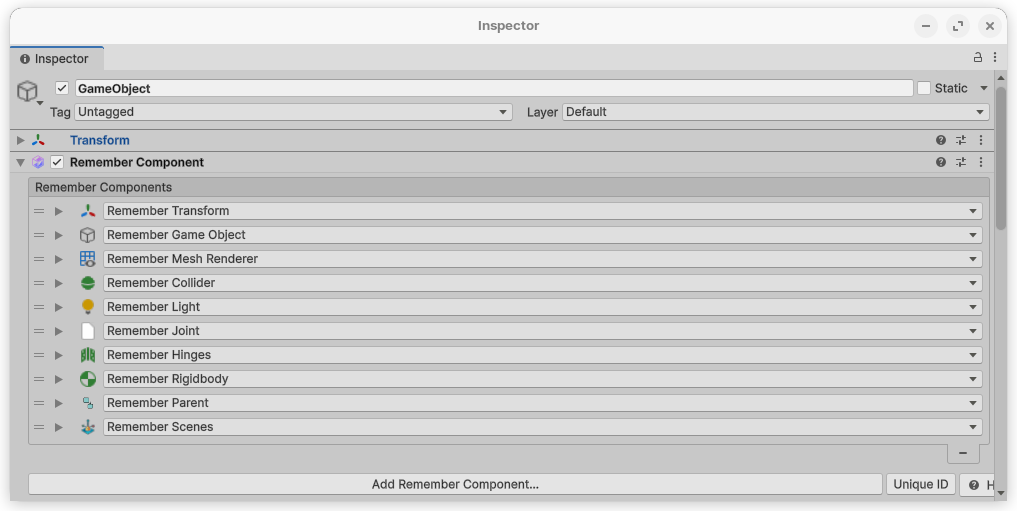
Add the [**Remember Component**](https://arawn-software-publishing.gitbook.io/arawn/basics/remember-component-remembercomposite) on your GameObject. Click on the button *Add Remember Component...* and choose what component you want to make saveable

<figure><img src="https://166712561-files.gitbook.io/~/files/v0/b/gitbook-x-prod.appspot.com/o/spaces%2Fp47l4hoFKIHGBwL1Cm4D%2Fuploads%2FgowaOvPqoyksuQGyP5uF%2Fimage.png?alt=media&#x26;token=6fa11e98-a9b3-4156-90dd-cc6ef8213fbe" alt=""><figcaption></figcaption></figure>

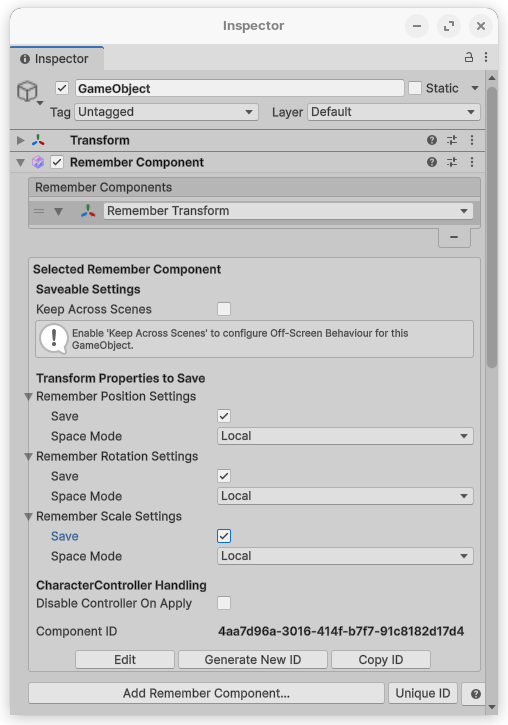
If you want to save the *Transform Position* of a Player:

1. Add the Remember Transform component
2. Check the boxes of the data that you want to save: Position, Rotation, Scale, in this case Position
3. Done

<figure><img src="https://166712561-files.gitbook.io/~/files/v0/b/gitbook-x-prod.appspot.com/o/spaces%2Fp47l4hoFKIHGBwL1Cm4D%2Fuploads%2FuVZEw5CVxjWiLXK3yZwa%2Fimage.png?alt=media&#x26;token=c52c8422-b934-4cc8-af3e-c87cbbb5a2fa" alt=""><figcaption></figcaption></figure>

{% embed url="<https://youtu.be/6W8z60ggpjQ?si=GzX_yZ-XDIWUZ6bb>" %}

***

### Save and Load with the Unity Editor

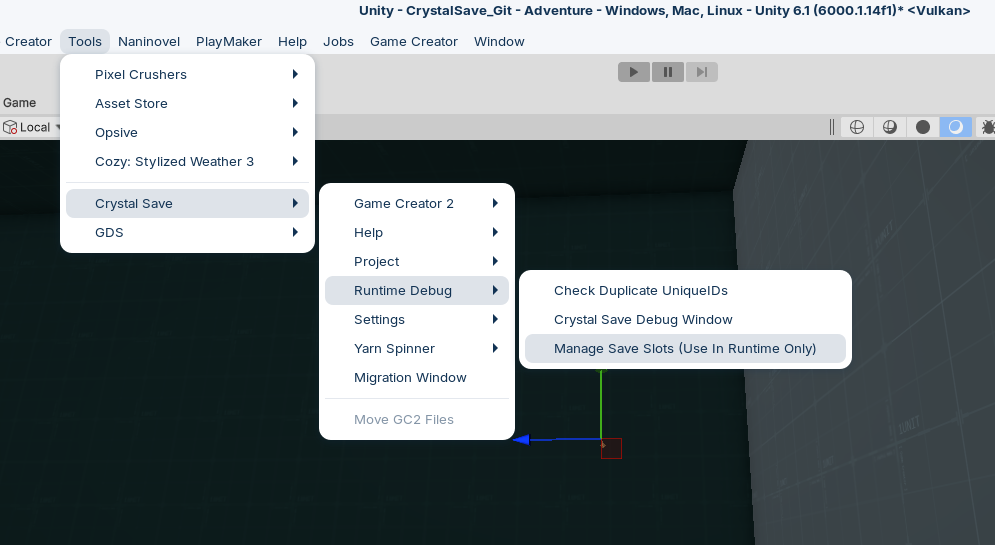
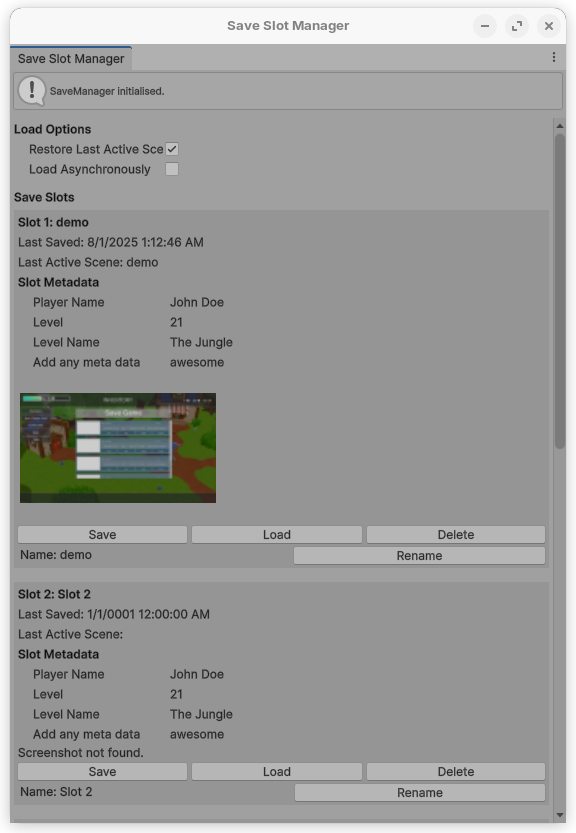
Open the Save Slot Manager Window in the top menu under Tools/Crystal Save/Runtime Debug/Manage Save Slots (Runtime only)\ <br>

<figure><img src="https://166712561-files.gitbook.io/~/files/v0/b/gitbook-x-prod.appspot.com/o/spaces%2Fp47l4hoFKIHGBwL1Cm4D%2Fuploads%2FY2kD9dGjV37Xs6g6rAXZ%2Fimage.png?alt=media&#x26;token=01c21783-e9b7-47cd-a5aa-f070a5698f30" alt=""><figcaption></figcaption></figure>

The will open the Save Slot Manager Window. *Keep in mind the window will only show the Save Slots during Runtime!*

<figure><img src="https://166712561-files.gitbook.io/~/files/v0/b/gitbook-x-prod.appspot.com/o/spaces%2Fp47l4hoFKIHGBwL1Cm4D%2Fuploads%2FdyYjScKuPfZ94puNUq7b%2Fimage.png?alt=media&#x26;token=6aa55a1f-3aad-4996-8f69-1cead62d6adc" alt=""><figcaption></figcaption></figure>

***

### Save and Load at Runtime through UI

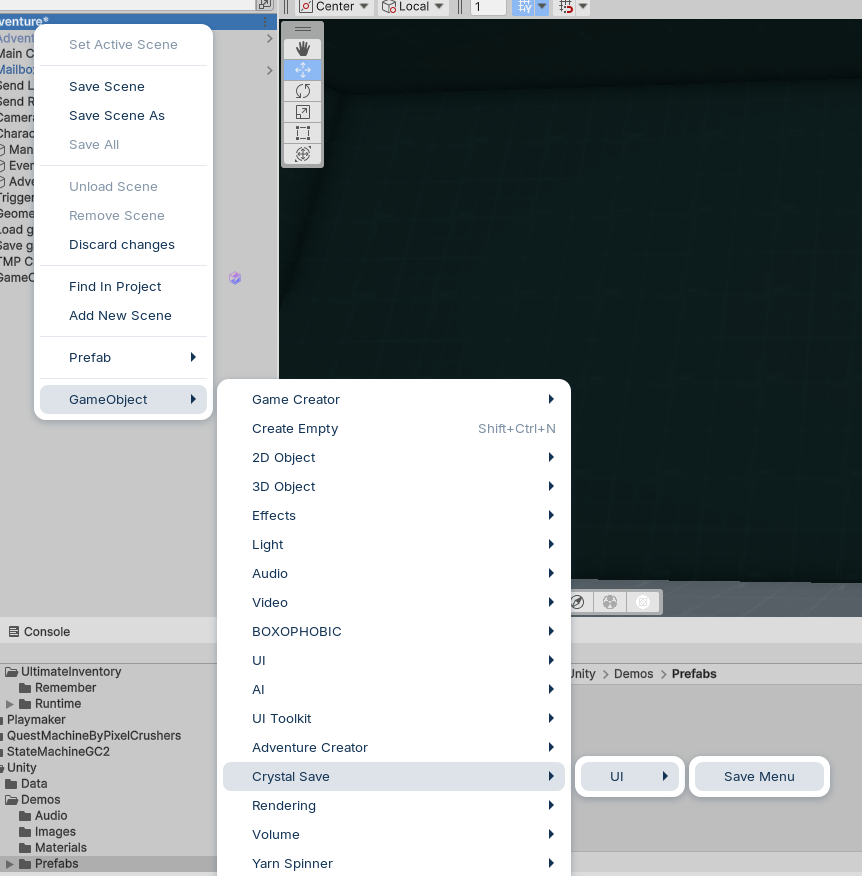
Right click in the Hierarchy Window and navigate to Crystal Save/UI/Save Menu and add the [Save Menu](https://arawn-software-publishing.gitbook.io/arawn/basics/save-load-ui) to your scene.

<figure><img src="https://166712561-files.gitbook.io/~/files/v0/b/gitbook-x-prod.appspot.com/o/spaces%2Fp47l4hoFKIHGBwL1Cm4D%2Fuploads%2Fop9cbVoC7EUHNnQ7sSm8%2Fimage.png?alt=media&#x26;token=c6712a40-f057-4629-b3f3-7d5eb43e91a6" alt=""><figcaption></figcaption></figure>

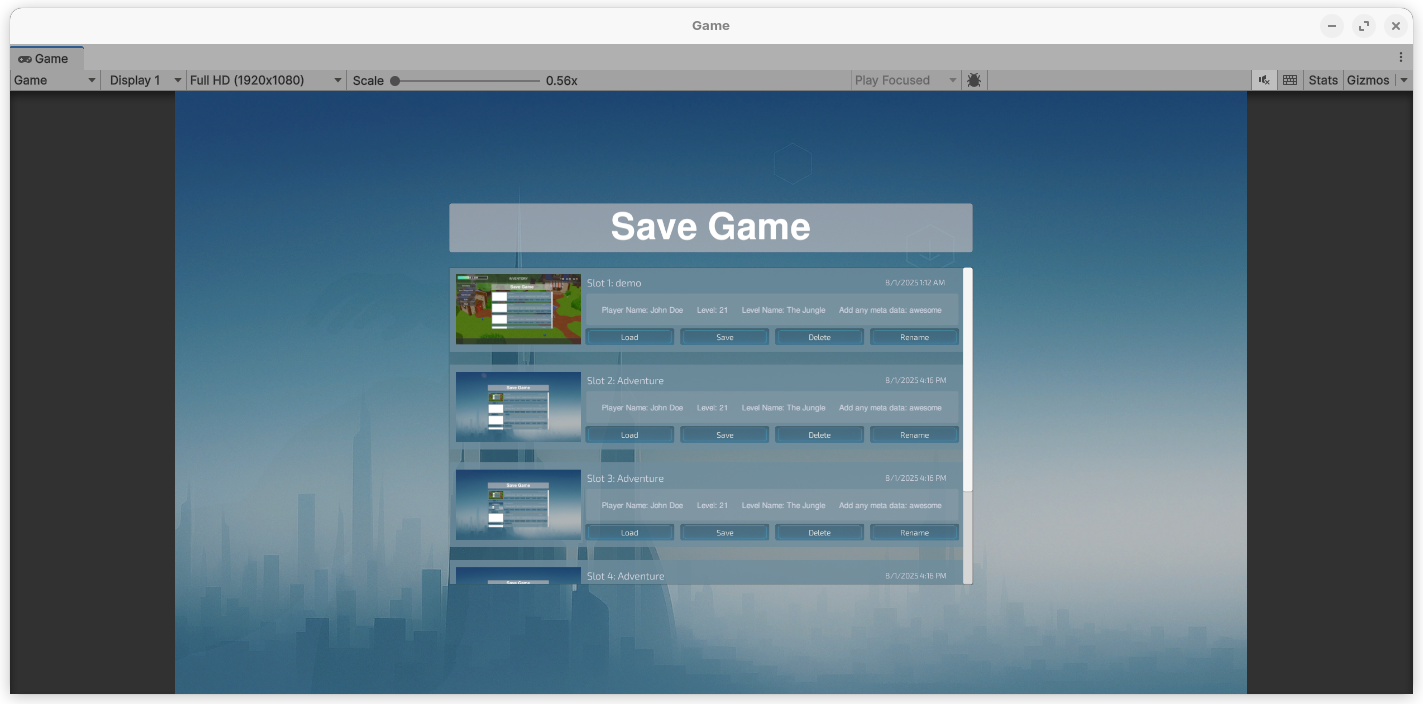
This will add a theme-able and ready-to-use Save Menu into your scene
<figure><img src="https://166712561-files.gitbook.io/~/files/v0/b/gitbook-x-prod.appspot.com/o/spaces%2Fp47l4hoFKIHGBwL1Cm4D%2Fuploads%2FstUkTQsew0mZgTkrx82t%2Fimage.png?alt=media&#x26;token=ee8ee312-e4e1-40d3-a417-69b2fb2dd396" alt=""><figcaption></figcaption></figure>