> For the complete documentation index, see [llms.txt](https://arawn-software-publishing.gitbook.io/arawn/llms.txt). Markdown versions of documentation pages are available by appending `.md` to page URLs; this page is available as [Markdown](https://arawn-software-publishing.gitbook.io/arawn/modules/adventure-creator.md).
# Adventure Creator
## 1. Overview
Crystal Save ships a dedicated `CrystalSavesList` element that works alongside Adventure Creator’s built‑in save list while remaining compatible with AC menus, translations, and ActionLists, giving you full Crystal Save slot management inside Adventure Creator projects.
## 2. Requirements
1. Install Adventure Creator and Crystal Save
* The menu element performs its own runtime initialization
2. Now install this Adventure Creator Save Module
## 3. Enhanced Crystal Save AC Game Editor
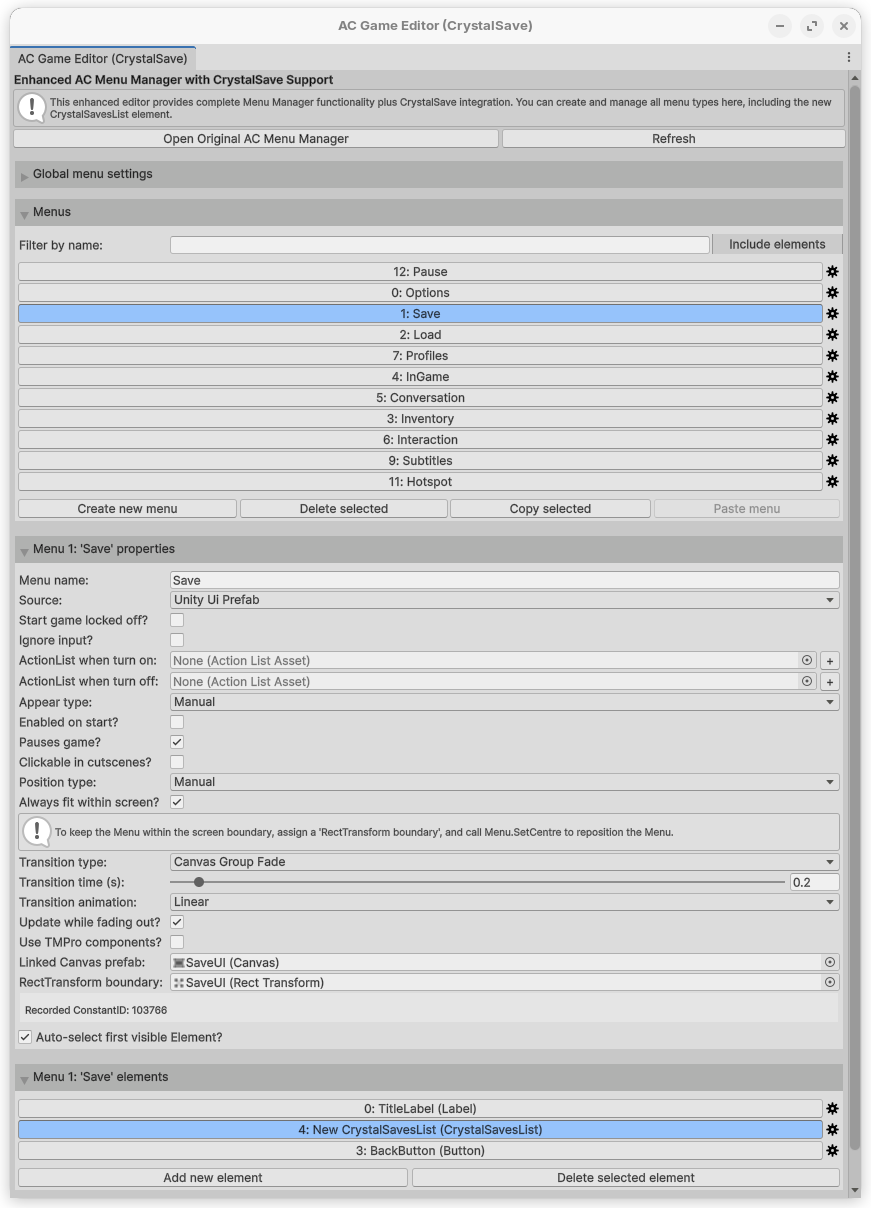
Adventure Creator’s built‑in Menu Manager drop-down is hard coded, so Crystal Save provides an alternate editor window that mirrors the full AC menu workflow while adding the Crystal Save element type to the element list.
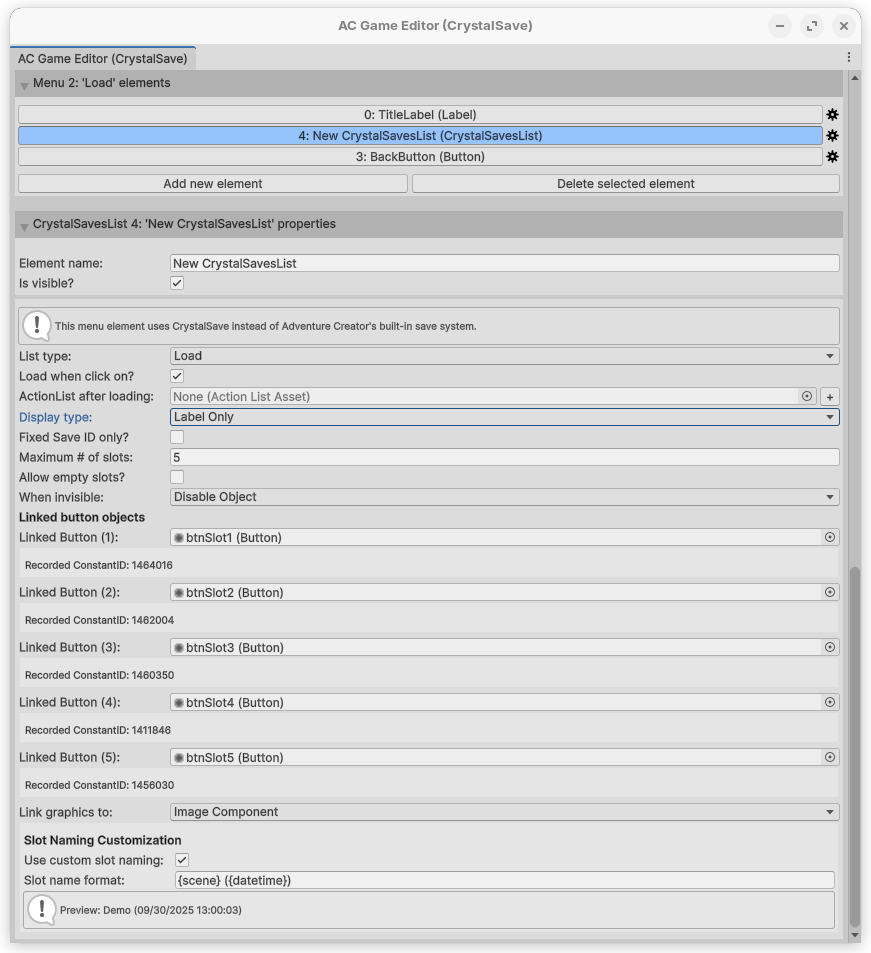
Open it via **Tools → Crystal Save → Adventure Creator → Menu Editor**, then use the standard menu/elements panes, including the new “CrystalSavesList” choice in the “Add new element” drop-down-button—to create or edit menus without touching Adventure Creator’s core files.\
A handy toolbar button opens AC’s original Game Editor if you ever need to jump back for other manager tabs.
## 4. Building Menus with CrystalSavesList
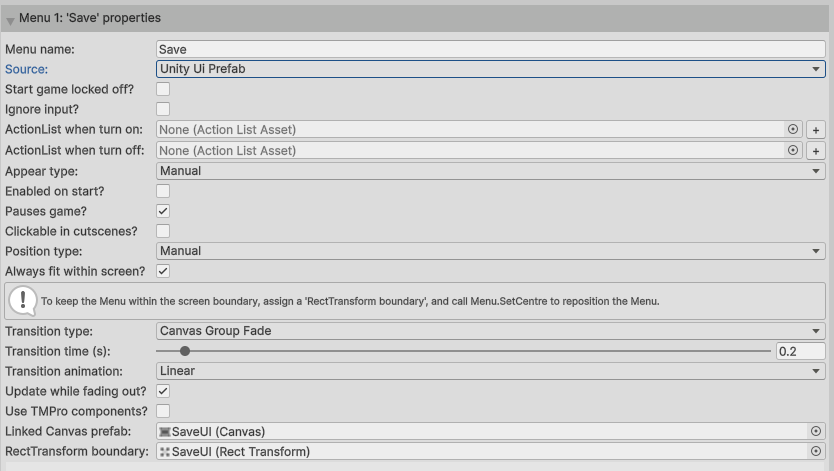
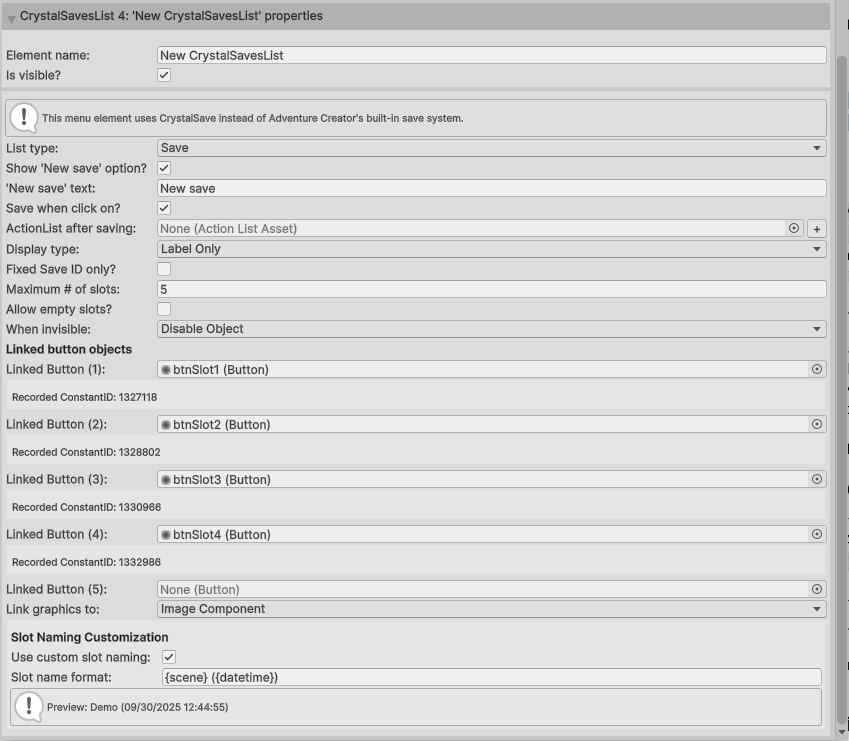
Make sure to set the Menu Save or Load Properties to
* **Source: Unity Ui Prefab**
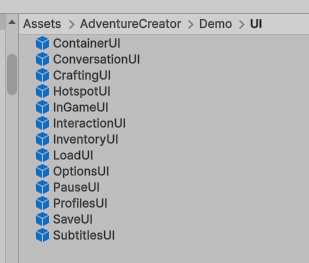
* Check if the references in **Linked Canvas prefab** and **RectTransform boundary** exist, if not reference for Load the **LoadUI** and for Save the **SaveUI** prefab
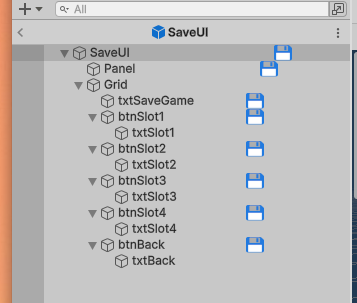
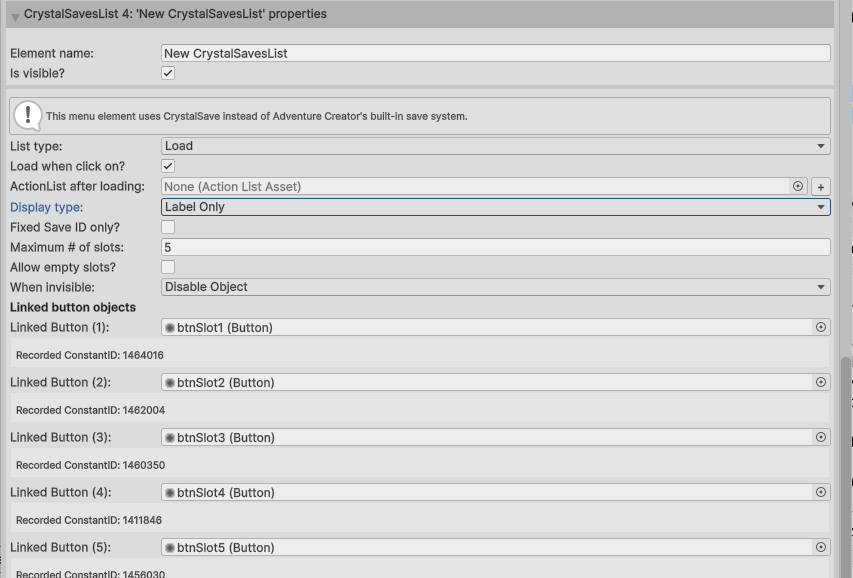
When you add the element, configure it just like AC’s native save list: choose Save or Load mode, limit slot counts, allow empty slots, expose “new save” entries, and hook ActionLists for post-save/load logic. **Don't forget to reference the Load/Save buttons under Linked button objects (if not already referenced by default) - Open the SaveUI / Load UI prefab to reference its button child objects**
Slot labels can be formatted with placeholders such as `{scene}` or `{datetime}`, and you can disable custom naming to fall back to Crystal Save defaults. *Keep in mind the Preview box does not show previews for Custom Metadata.*\
At runtime the element resolves save data through the Crystal Save `SaveManager`, translating between AC slot indices and Crystal Save’s 1-based numbering, and it refuses to run until a manager is available to avoid corrupt operations.
## 5. Persisting Adventure Creator data with Remember Component
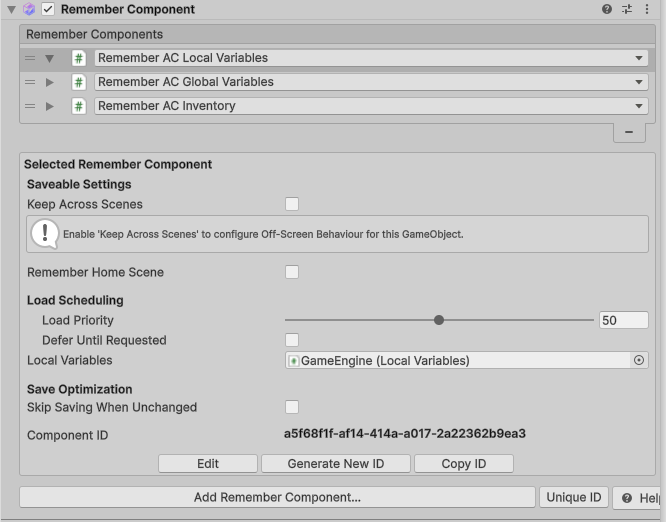
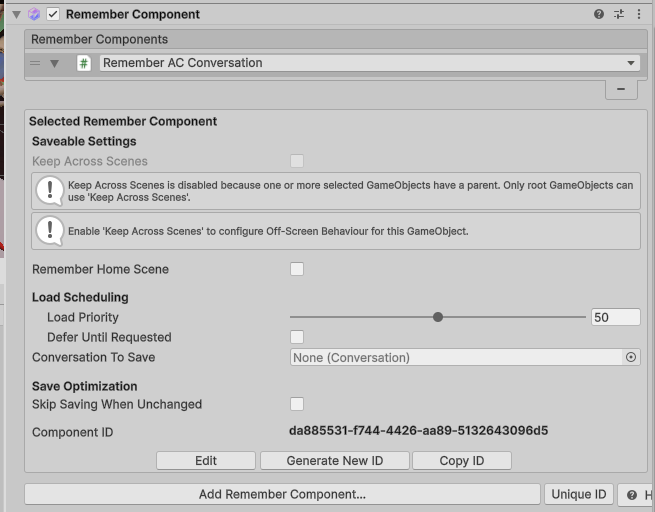
Create a dedicated GameObject, add the `Remember Component` component, and use its “Add Remember Component…” button to stack the Crystal Save remember helpers you need while keeping stable component IDs across play mode reloads.
### Saving Global Variables
Attach `RememberACGlobalVariables` through the composite to snapshot Adventure Creator’s global variables; you can optionally enable **Skip Saving When Unchanged** to avoid redundant writes, and the component safely reads/writes through `KickStarter.runtimeVariables` with typed serialization.
Place this GameObject in any scene that should persist data (e.g., your bootstrap scene) or mark it `DontDestroyOnLoad` if you need the remember components available across the entire project.
### Saving Local Variables
For scene-specific `LocalVariables`, add `RememberACLocalVariables`, which requires the AC `LocalVariables` component and applies the same delta-saving optimizations. Reference the GameEngine GameObject in its Local Variables field. (see screenshot above)
### Saving Inventory
Same procedure as Saving Global Variables (see screenshot above)
### Saving a conversation
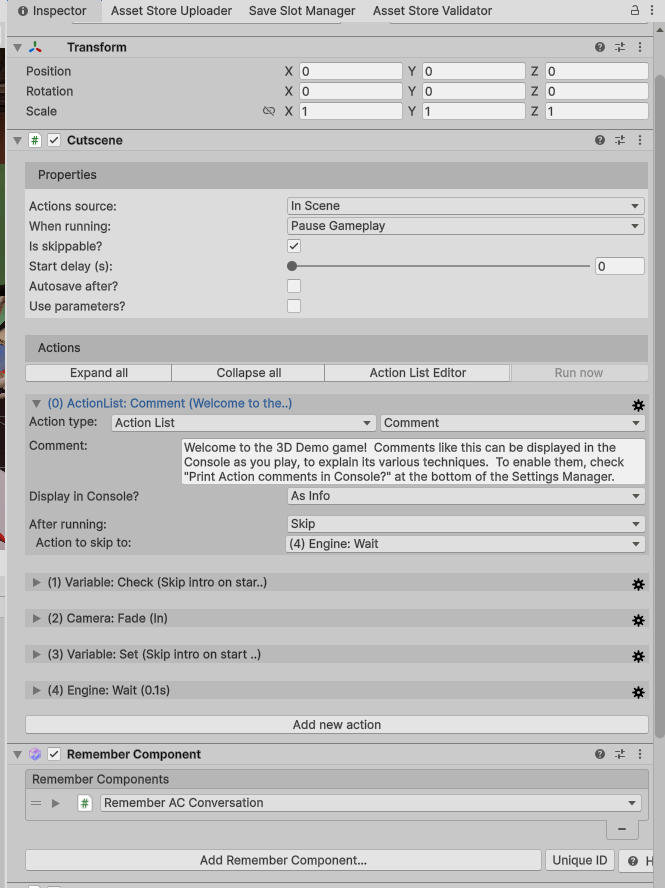
Add the Remember AC Conversation component to the Conversation GameObject. See the demo for reference.
* The Conversation To Save field can be left empty if the Conversation component is on the same GameObject as the Remember AC Conversation component.
## 6. Crystal Save action library for Adventure Creator
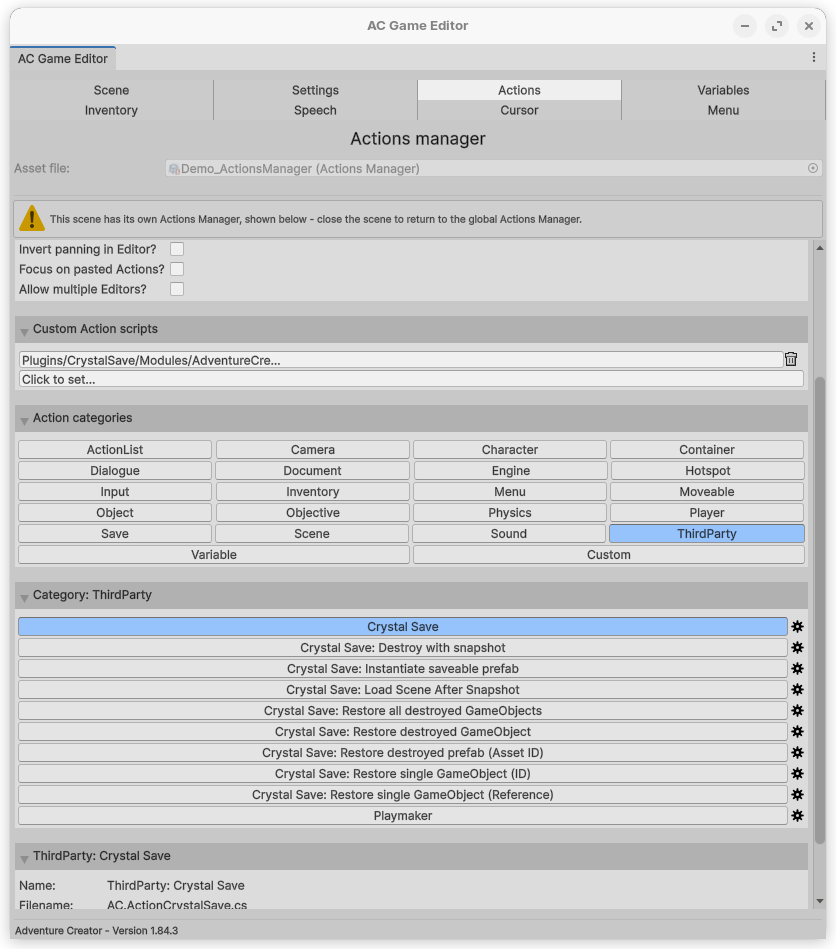
After registering the Crystal Save actions in Adventure Creator’s Action Manager, they appear in the **Third Party** category thanks to their `ActionCategory.ThirdParty` designation.
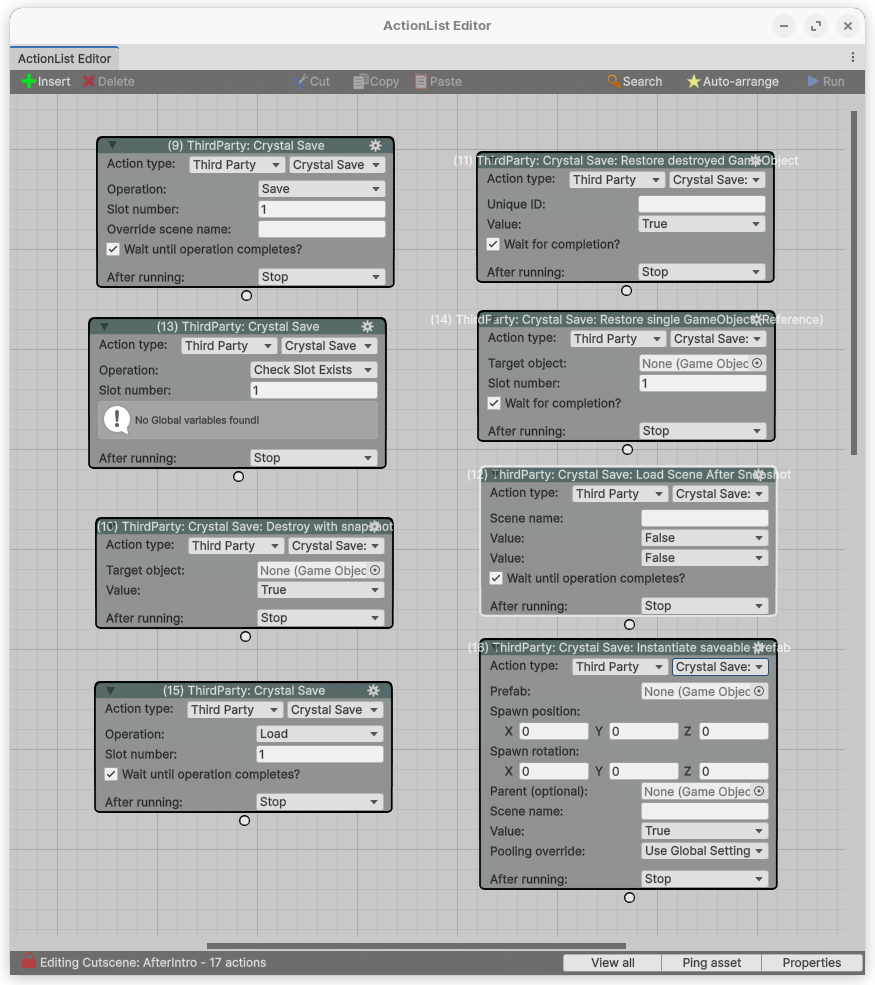
Available commands include:
* **Crystal Save** – Save, load, delete, or test for existing slots with optional parameters (including bool outputs for existence checks).
* **Destroy with snapshot** – Capture a snapshot and destroy/deactivate a target so it can be restored later.
* **Restore destroyed GameObject / prefab** – Recreate objects by Crystal Save Unique ID or Prefab Asset ID, with optional frame delays for safe instantiation.
* **Instantiate saveable prefab** – Spawn Saveable Prefabs through the factory with pooling overrides and parameter outputs.
* **Restore single GameObject by ID** – Pull a specific object state from a chosen save slot.
* **Load scene after snapshot** – Take an in-memory snapshot, populate pending prefabs, then change scenes asynchronously or additively without touching disk saves.
Follow Adventure Creator’s documentation to add these actions to the Action Manager before using them in ActionLists.
## 7. Typical workflow
1. Use the enhanced editor to add a menu containing `CrystalSavesList`, configure it for saving and loading, and ensure a `SaveManager` is active so the element can populate slot labels and trigger operations.
Place a persistent Remember Component GameObject in your bootstrap scene, adding `RememberACGlobalVariables` (and `RememberACLocalVariables` where needed) so AC variables are serialized alongside the rest of your Crystal Save data.
In ActionLists, call the Crystal Save actions (e.g., trigger `ActionCrystalSave` to save before transitioning scenes, or restore prefabs as part of a resume flow).
## 8. Troubleshooting & tips
* Check the included Demo Scene (Assets/Plugins/CrystalSave/Modules/AdventureCreator/Demo) to learn how to persist various AC types via Crystal Save.
* **Requires the AC's original 3D Demo Scene**
* If the menu shows “No SaveManager,” verify that the Crystal Save manager is present and initialized, and that your scripting defines are configured correctly.
* Compilation or scripting define issues can hide the enhanced editor menu item; recheck the defines and Unity console if it fails to appear.
* When save/load operations misbehave, inspect the Unity Console for Crystal Save logs and confirm your slot configuration matches the `SaveManager` setup.
* Make sure you have set the correct List type in the Properties
* Ensure that all button references are set